
You did the homework. You read the deep dives on Substantially Equal Periodic Payments (SEPP) of 72(t), crunched the numbers, and successfully executed your 72(t) distributions to fund your early retirement. You felt like a pro, at least until now.
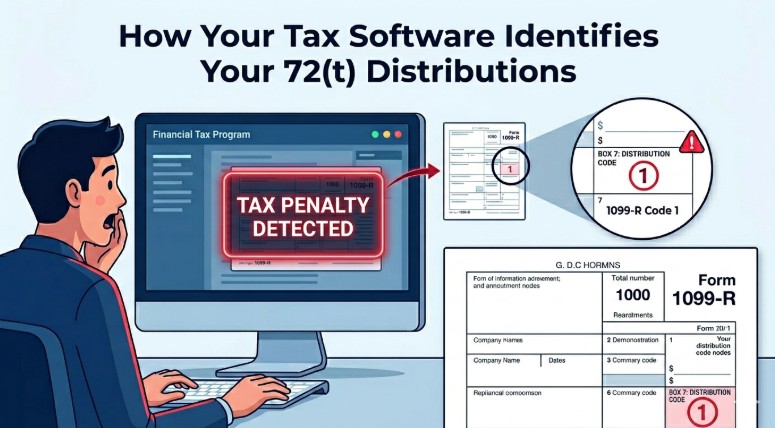
You just imported your 1099-R into your tax software, and a giant red number appeared in the form of a tax repayment. The software is showing a 10% early withdrawal penalty, and suddenly your “tax-free” bridge to age 59½ looks like a burning pier.
Before you panic: Your 72(t) strategy hasn’t failed. In the world of tax software, this isn’t a structural collapse; it’s just a missing piece of the walkway. You aren’t looking at a math error; you’re looking at an incomplete reporting sequence.
The Culprit: Box 7 on Your 1099-R
Tax software is only as smart as the data it receives. Your 1099-R arrives from your custodian (Vanguard, Fidelity, Schwab, etc.) and it sometimes will have a Code 1 in Box 7.
- Code 1 means: “Early distribution, no known exception.”
- The Software’s Logic: “Code 1 = Under age 59½ = Apply 10% penalty.”
Why doesn’t the custodian use Code 2, which signals an exception? Because many custodians don’t track SEPP schedules for you. They report the withdrawal, slap a “good luck” code on it, and leave the tax-form-gymnastics to you.
The Reality: Code 1 doesn’t mean your bridge is out; it just means you have some more paperwork to complete.
The Fix: Finding Form 5329
The penalty is being calculated because the software hasn’t seen IRS Form 5329 yet. This is the form that tells the IRS, “Yes, I’m under 59½, but I have a valid permit to cross.”
To fix this, you don’t edit the 1099-R. You have to navigate to the “Additional Taxes” or “Penalty Exceptions” section of your software to bridge the gap.
Step 1: Find the “Exception” Screen
After you enter your 1099-R, the software will eventually ask: “Did you use this money for anything special?” or “Do you qualify for an exception to the 10% penalty?”
Step 2: Select Code 02
You are looking for the option labeled “Substantially Equal Periodic Payments” or “SEPP.” In the IRS rulebook, this is Exception Code 02.
Step 3: Verify the “Vanishing Act”
Once you apply Code 02 to the distribution amount, two things should happen:
- That scary 10% penalty in your “Total Tax Owed” should disappear.
- Your software should generate Form 5329, with the number 02 clearly visible on Line 2.
“What if I don’t see the SEPP option?”
Some versions of tax software hide these forms in the “Other Tax Situations” menu. If you can’t find a checkbox for SEPP, look for:
- Form 5329 (Direct entry)
- Part I, Line 2 (The “Other exceptions” line)
Pro-Tip: If your software is still being stubborn, search for “1099-R penalty exception” in the search bar. You are essentially looking for the structural support that allows you to override the default penalty.
The Takeaway
In early retirement planning, the 72(t) is a sophisticated tool designed to get you from one side of the “penalty years” to the other. But even the best-engineered bridge requires proper inspection and paperwork.
A 1099-R showing a penalty isn’t a sign to turn back—it’s just a prompt to finish the job. Once you manually link your 72(t) to Exception Code 02, your tax return will finally reflect the reality of your plan.
Log back in, find Form 5329, and put out the fire. You’ve earned the income; don’t let a default software setting take 10% of it.